

Welcome to our blogging community! We’re excited to have you on board. In this guide, we’ll walk you through the process of posting a blog on our website and how to register as a member. Whether you’re a seasoned blogger or new to the world of writing, we’ve got you covered.
Step 1: Registering an Account
Before you can start sharing your thoughts and ideas with the world, you’ll need to register for an account on our website. Here’s how:
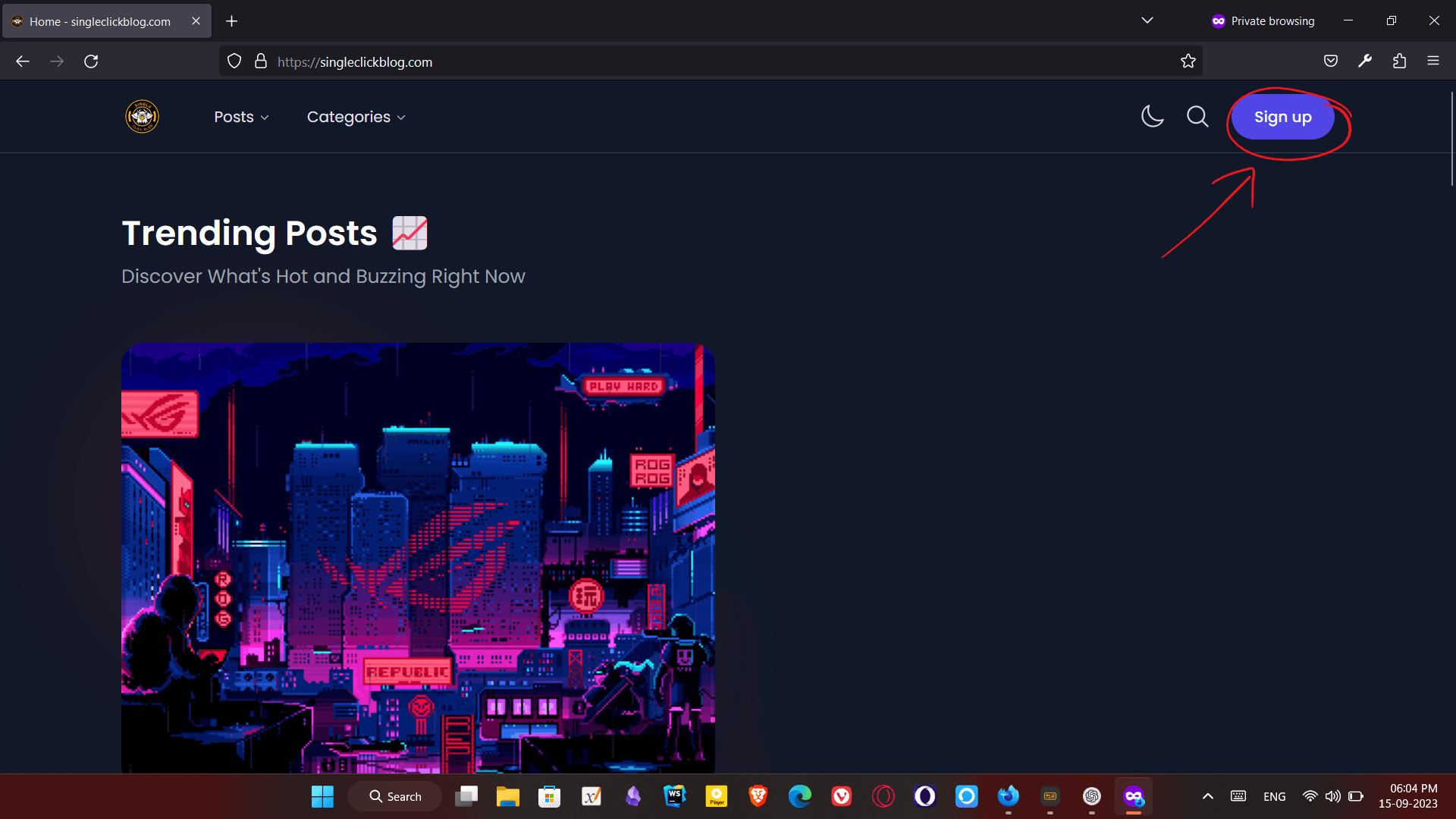
Visit Our Homepage: Go to our website’s homepage by entering the URL in your browser.
Click on “Register” or “Sign Up”: Look for the registration option, which is usually located in the top right corner of the homepage. Click on it.
Fill in Your Details: You’ll be prompted to fill in your basic information, including your username, email address, and a secure password. Ensure that your password is strong and unique.
Verify Your Email: After completing the registration form, check your email inbox for a verification link. Click on the link to verify your email address. This step is important to activate your account.
Complete Your Profile: Once you’ve verified your email, you can log in to your new account and complete your profile. You can add a profile picture, a short bio, and any other information you’d like to share.

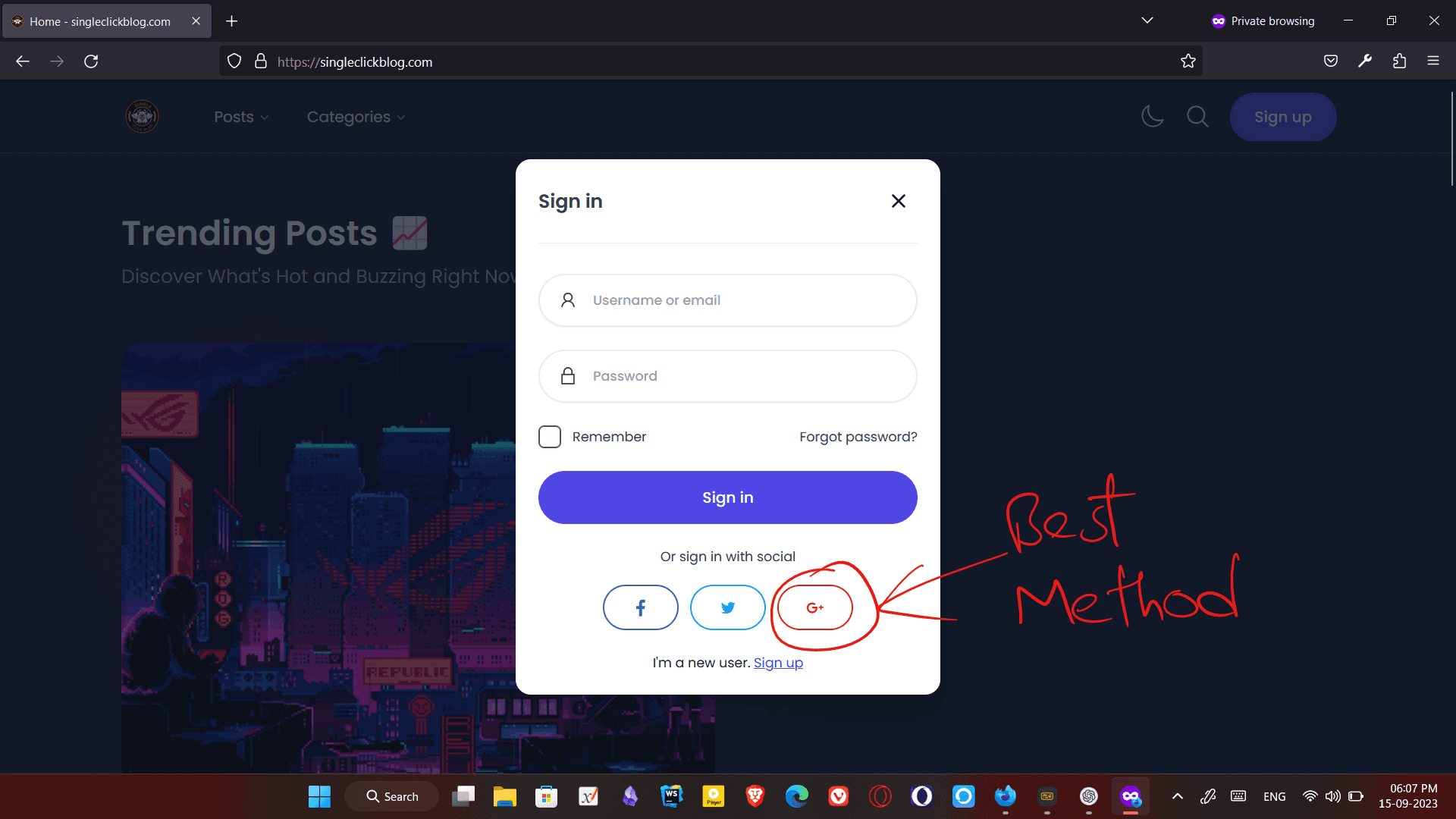
The Best way to Sign Up is through Google Sign up Button(Preferred Method)
as you don’t have to manage your Passwords

Step 2: Logging In
Now that you have a registered account, here’s how to log in:
Visit Our Homepage: Go to our website’s homepage.
Click on “Log In” or “Sign In”: Look for the login option, usually located in the top right corner of the homepage. Click on it.
Enter Your Credentials: Input your registered email address and password.
Click “Log In”: Once your information is entered correctly, click the “Log In” button to access your account.
Step 3: Posting a Blog

Now that you’re logged in, it’s time to share your thoughts with the world by posting a blog:
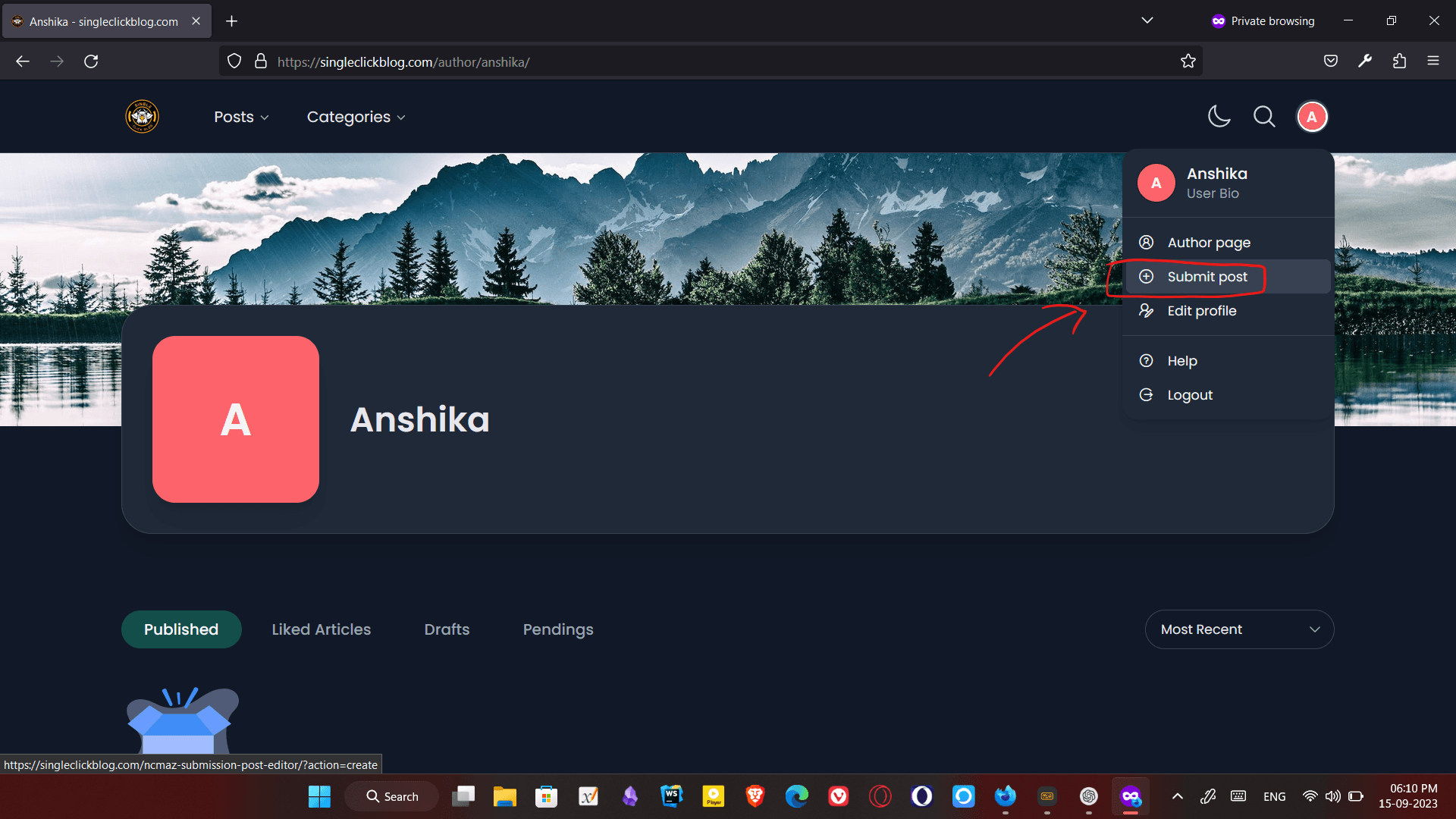
Go to Your Dashboard: After logging in, you’ll be taken to your user dashboard. This is your control center for managing your blog posts.
Click “New Post” or “Create Blog”: Look for the “New Post” or “Create Blog” button and click on it.
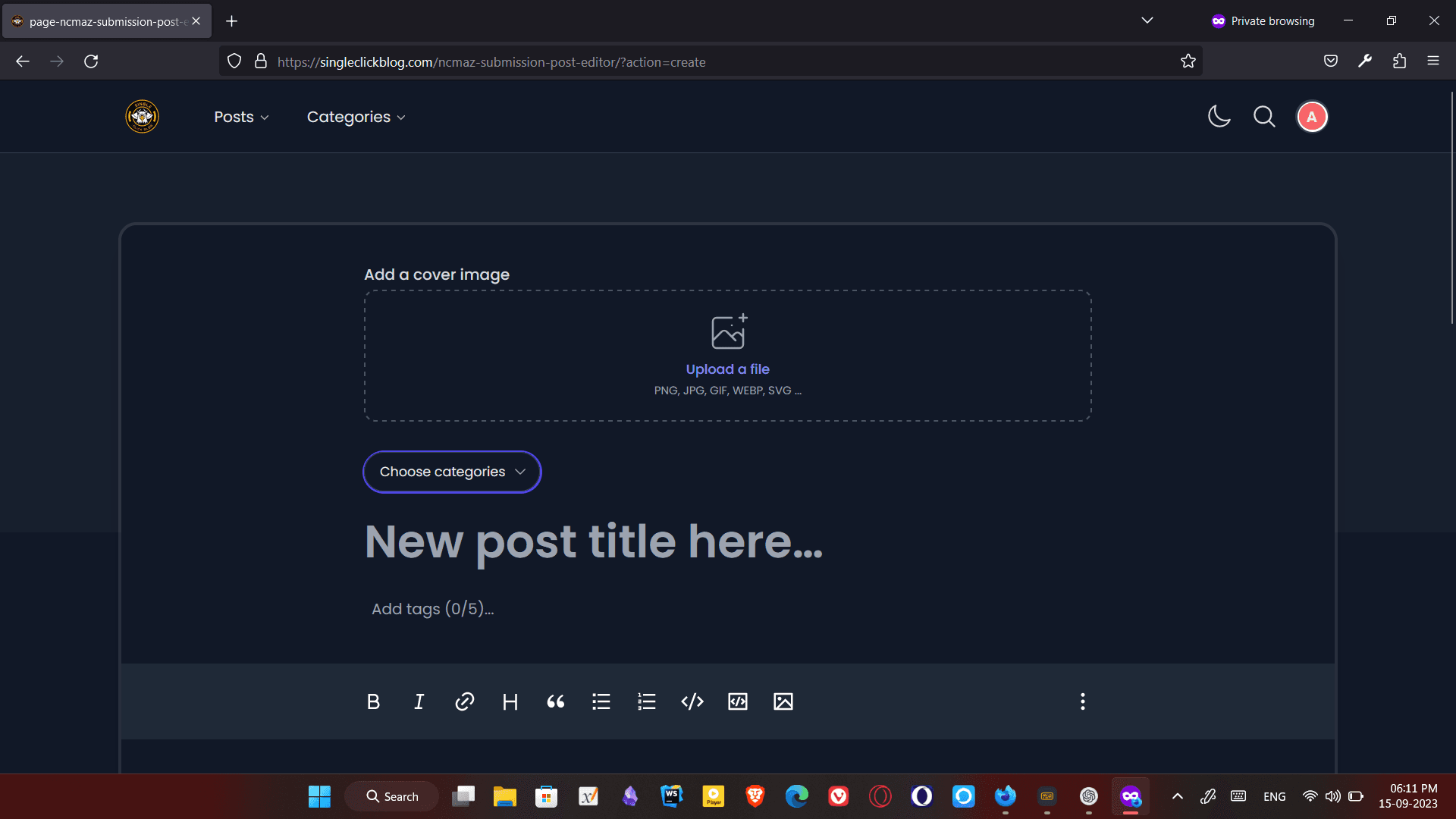
Write Your Blog: You’ll be taken to a user-friendly editor where you can write and format your blog post. Add a catchy title, your content, images, and any other media you want to include.
Select Categories and Tags: Categorize your blog post by choosing relevant categories and adding tags that describe the content.
Preview and Edit: Before publishing, take a moment to preview your blog post to ensure everything looks great. You can edit and make changes as needed.
Hit “Publish”: Once you’re satisfied with your blog post, click the “Publish” button. Congratulations, your blog is now live and visible to our readers!
 You also have extra options to choose from
-
Write an excerpt which will be like a summary to your Blog
-
Choose a Post Format which decides how your page will be shown to the visitors
-
Pro Tip : Try posting different posts with different type of post formats 🙂
-
This page that you are Watching is of Type Gallery
-
You can also Toggle Comment Section for your specific Post
 After all of the Hassle if you are not ready to ship your blog… No worries Save it to Draft to Post it later whenever you feel like to do So.
Conclusion
That’s it! You’ve successfully registered an account, logged in, and posted your first blog on our website. We can’t wait to see the amazing content you’ll share with our community. If you have any questions or need assistance, feel free to reach out to our support team. Happy blogging!






Responses (0 )